Consistent Character AI: Same Face in Every Image and Video
Consistent character AI, explained: why AI faces drift between generations, and the reference-first workflow that keeps one character in every image and video.
Why AI Characters Change From One Image to the Next
Ask an image model for "a slim man with a pencil moustache in a mustard silk suit" twice and you get two different men. Both match the words. Neither is the other. That is the whole consistency problem: a description is a category, and every generation casts a new member of it.
A prompt fixes the attributes you named and leaves everything else open: the exact shape of the nose, the spacing of the eyes, the hairline, how the jacket sits at the back. Each run fills those gaps fresh. For one image that's fine. For a series, a feed or a video, it's the difference between a character and a run of lookalikes.
This guide covers why the usual fixes fall short, what actually holds a character in place, and how the workflow runs in Genfire's consistent character generator, from the first still to video.
Why Longer Prompts Don't Fix It
The first instinct is to describe harder: the age, the jaw, the eye colour, the exact shade of the suit. That narrows the field, but it never closes it. "Close-set ice-blue eyes" still fits thousands of faces, and every detail you didn't write is re-rolled on the next run. Change the scene or the angle and the drift gets worse, because the face was never pinned down in the first place.
What closes the gap is showing the model who the character is instead of telling it. That means a reference image, and the same one every time.
The Fix: Identity Lives in an Image
Consistent character AI works by giving every generation the same reference. The model sees the face, the build and the outfit, and your prompt only has to describe what changes: the scene, the pose, the light.
Not every reference does the job equally well. A single portrait holds the face but says nothing about the body or the back of the outfit, so the first time your character turns around, the model invents a back. A single full-body shot holds the outfit but shrinks the face to a few pixels.
That's why Genfire keeps each character on a three-view character sheet: one wide image showing the same character three times.
- A close-up portrait. Head and shoulders, facing the camera. This carries the face and every quirk in it.
- A full-body rear view. The back of the hair and the outfit, which a model otherwise makes up the moment a character faces away.
- A full-body front view. Build, proportions and wardrobe from head to shoes.
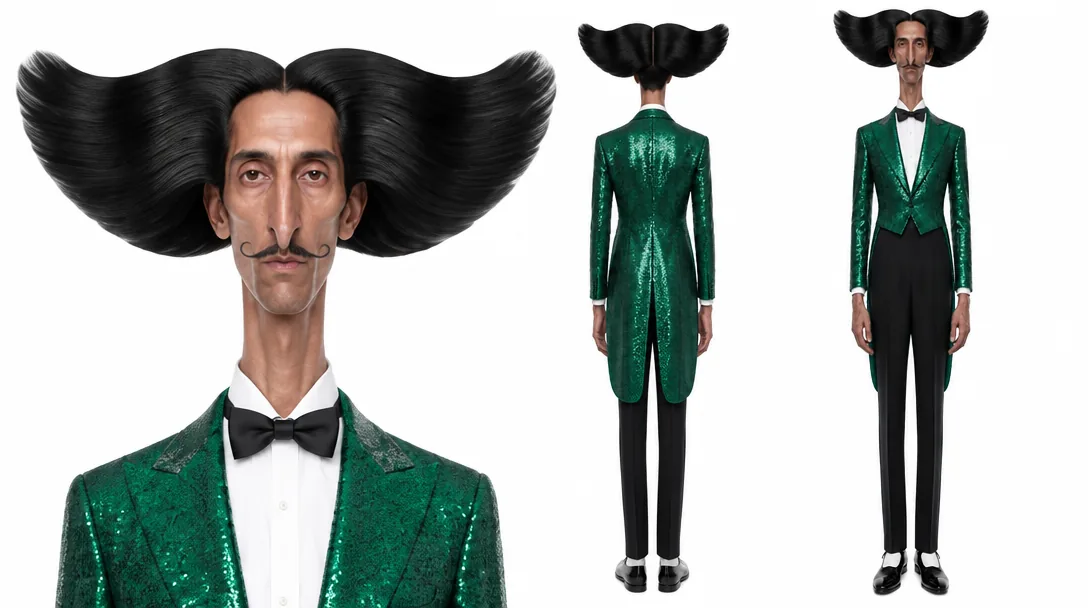
Look at what the rear view records here: the shape of the hair wings from behind and the cut of the tailcoat. Without that panel, a shot from behind would be a guess. For the details of building a sheet yourself, see our guide on how to make a character sheet for AI.
How the Workflow Runs on Genfire
The workflow has three stages, and only the first one takes any real thought.
1. Define the character once
In the AI Influencer Studio, you build a character from traits: build, height, hair, face, eyes, style and accessories. A tier sets how far they are pushed: Average stays believable, Bold lets the quirks show, Extreme goes surreal while staying photoreal. Anything the traits don't cover goes in your own words. You can also add a photo of yourself to keep your face while the traits change the rest.
Not starting from scratch? Every character on the studio's cast wall can be recreated. Open one, press Recreate, and its traits and brief load into the builder for you to change.
2. Lock it on a sheet
The studio renders the three-view sheet with GPT Image 2.5 Sunburst and saves the character under an @handle. From then on, the sheet is the character. You don't describe the face again.
If the character already exists as art, the Character Sheet app takes up to eight reference images (photos, drawings or 3D renders) and returns the same three-view layout in the same rendering style. Save that sheet as an influencer and it becomes the identity behind an @handle as it is, with nothing rendered again.
3. Mention the handle everywhere
Type the @handle into an image or video prompt and the sheet goes along as the identity reference. Your prompt describes the new scene; the sheet supplies the person. No re-uploading, no copy-pasted descriptions.
From the character's page you can also go straight to photoshoots at 4:5, 1:1, 9:16 or 16:9, four-slide carousels and headshots, all built from the same face.
Same Face, New Outfit
Consistency doesn't mean wearing the same clothes forever. Write the new wardrobe into the prompt, or attach a reference photo to recreate: your character takes that photo's pose, outfit, setting and light, and the face stays theirs.
One habit makes the biggest difference: change one thing per prompt. A new outfit in a familiar setting, or a new setting in the familiar outfit. Change everything at once and you give the model the most room to wander.
Consistent Character AI Video
Stills are half the job; feeds run on short video. The same sheet is the identity for video, and every influencer video on Genfire runs on ByteDance's Seedance 2.5:
- Motion transfer with [Genjudo](/genjudo). Your character performs any clip's moves, with the same timing and camera move.
- Talk to camera. Your character speaks a script. Give them a saved voice in their profile and Talk to camera uses it automatically, so they sound the same from clip to clip.
- Lip-sync to a voice track or a song.
- Animate a still, or act in a cinematic scene you describe.
In the studio, Turn to motion opens the Motion panel with your character already loaded; for a character built in the studio, its sheet goes in as @Image1. The panel is a front door onto Genjudo, so runs started there show up in your Genjudo history like any other.
Inside Genjudo, your images are the cast. The direction cites the source clip as @Video1 and your images as @Image1 and @Image2, and each token binds an image to a role:
Transfer the motion in @Video1 onto @Image1 exactly: match the timing, camera move and framing, and keep the identity, clothing and proportions of @Image1 unchanged.
That's Genjudo's Exact transfer preset, word for word. Leave the prompt empty instead and Genjudo's director watches your clip and writes a shot-by-shot direction that maps each image to its role, which you can edit before running.
Two consistent characters in one shot
Genjudo's Two characters preset casts a foreground role from @Image1 and a background role from @Image2. It keeps both identities, wardrobes and proportions, and matches the timing, blocking and camera move of the reference clip. Two sheets, two characters, one video. The AI motion transfer page covers choosing clips and images for this in more depth.
When a Character Still Drifts
The sheet makes the same face the default. It doesn't make every generation perfect. Busy scenes, extreme angles and heavy style changes can still pull a character off-model, and when that happens the cause is usually in the setup.
| What you see | What to change |
|---|---|
| The face looks like a cousin, not the character | Keep the character larger in frame; a face a few pixels wide has little to hold on to |
| The outfit changes between shots | Name the outfit in the prompt, and change only one thing per prompt |
| The back of the outfit is wrong in a rear shot | Check the sheet's rear view; if it's off, make a new sheet with a note about the back |
| The face drifts in a video | Pin it in the direction: "keep the identity of @Image1 unchanged", and run more than one take |
| Two characters blend into one | Use Two characters, one image per role, and say who stands where |
Genjudo runs one to four takes per run, and generative video varies from take to take. For a shot that matters, run two or three and keep the best.
Where Consistency Pays Off
The payoff grows with every appearance. An AI influencer posting daily depends on it, a story series needs its lead recognisable in scene twelve, and a brand host has to look the same on every post. The fix is the same each time: one sheet, one @handle, mentioned every time. The consistent character generator page shows the whole loop with real sheets.
Use Faces You Have the Right To
Build original characters, or use your own face or that of someone who has agreed to it. Genfire's terms don't allow using a real person's likeness without their express authorization, and many platforms expect AI-generated media to be labelled, especially in sponsored posts.
What It Costs
Everything runs on Genfire credits from one balance shared across 80+ image, video and audio models, and every Generate button shows the exact price before anything runs. Credit packs start at $19, purchased credits stay valid for 12 months, and every pack comes with a commercial-use licence. Details are on the pricing page.
FAQ
What is consistent character AI?
Consistent character AI is any method that keeps one character's face, build and outfit the same across many AI generations. The reliable way is to give every generation the same reference image rather than a text description. On Genfire that reference is a three-view character sheet saved under an @handle.
How do I keep the same character in AI images?
Create the character once as a three-view sheet, save it under an @handle, and mention that handle in every prompt. The sheet goes along as the identity reference, so the face, build and outfit carry from shot to shot while your prompt changes the scene.
Can I get the same face in every image without a photo?
Yes. A character built in the AI Influencer Studio needs no photo: its sheet is generated from traits or a written description, and that single image becomes the reference for everything after it.
Does a consistent character work in AI video?
Yes. The same sheet is the identity for video. Influencer videos on Genfire run on Seedance 2.5, including motion transfer with Genjudo, talking to camera, lip-sync, animating a still and cinematic scenes.
Can two consistent characters appear in the same video?
Yes. Genjudo's Two characters preset casts a foreground role and a background role from two images, keeps both identities, wardrobes and proportions, and matches the reference clip's timing, blocking and camera move.
Will the character look identical in every generation?
The sheet makes the face, build and wardrobe the default every time, but busy scenes, extreme angles and heavy style changes can still cause drift. Keep the character clearly in frame, change one thing at a time, and generate more than one take when a shot matters.