AI Model Photoshoot: Cast, Style and Shoot a Virtual Model
How to run an AI model photoshoot: cast an AI fashion model trait by trait, lock them on one character sheet, then shoot looks, carousels and video.
An AI model photoshoot only works if the model is the same person in every frame. Prompt "a tall model in a camel coat" ten times and you get ten different people. That's fine for a moodboard and useless for a brand. The fix is the one every real shoot already uses: cast the model first, then shoot.
This guide walks through that workflow in Genfire, from casting an AI fashion model trait by trait to putting your garment on them in video. The short version lives on the AI fashion model generator page.
How a Virtual Model Photoshoot Works in Genfire
There are three stages, and each one feeds the next.
- 1Cast. Build the model in the AI Influencer Studio, section by section.
- 2Lock. The studio renders one character sheet, a close-up portrait plus full-body rear and front views, and saves the model under an @handle.
- 3Shoot. Photoshoots, carousels and headshots use the sheet as the identity, so the face stays the model's while your prompt sets the wardrobe, setting and light. Video runs on Seedance 2.5, including two Genjudo presets made for clothing.
Step 1: Cast Your AI Fashion Model
Casting is trait by trait, the way a casting director would brief an agency.
- Body: gender, age, build (Slim, Athletic, Muscular, Curvy, Heavy or Ultra Muscular), height from Average to Very tall, and up to two proportions such as Long limbs or Broad shoulders.
- Face and colouring: skin colour, hairstyle, hair colour, head shape, eyes and facial features.
- Wardrobe: a Style (Casual, Goth, Retro, Sporty, Streetstyle, Suits, Theatre or Y2K) plus up to three accessories from Glasses, Headphones, Jewelry, a Hat and a Bag.
The tier sets how far those traits go, and you pick it before the traits. The builder starts on Extreme, so switch it: for most clothing brands, Average is the right call, a believable person with nothing exaggerated. Bold gives an odd but plausible editorial face, and Extreme pushes every trait to surreal, prosthetic-grade exaggeration, for campaigns that care more about stopping the scroll than looking like the customer.
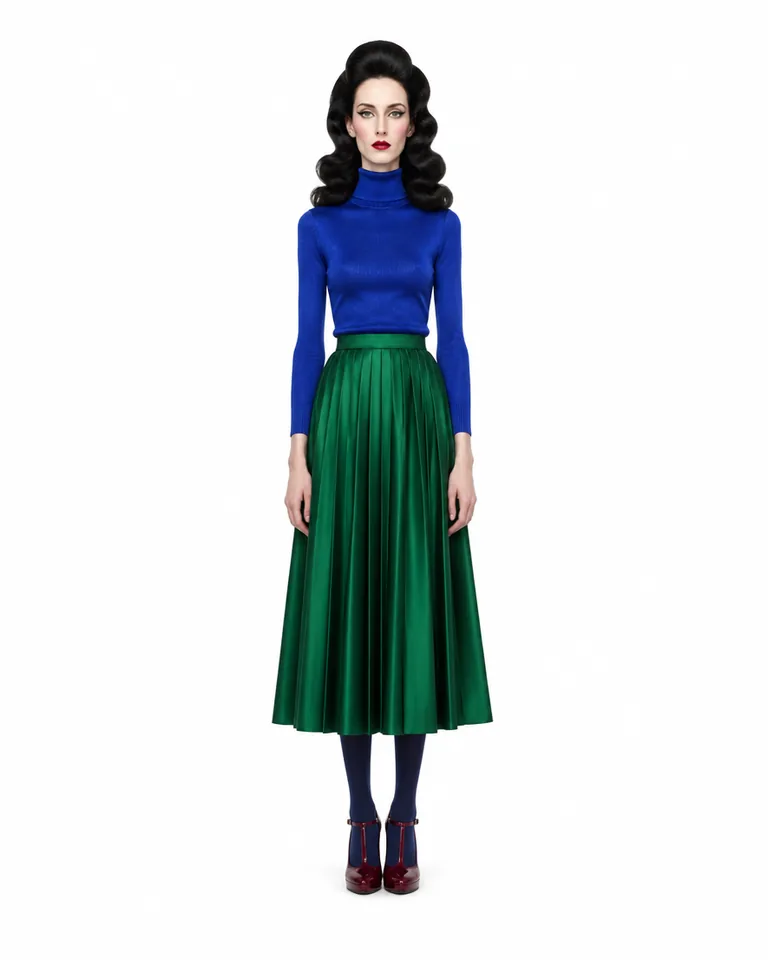
Anything the catalog doesn't cover goes in the description box, in your own words. A brief like this works well:
A tall, slim model in her late twenties with a sleek jet-black bob and high cheekbones, in a sharply tailored ivory suit, a black silk shirt and pointed boots.
The AI fashion model generator page has more model briefs to start from. One thing to know before you render: sheets come out in the studio's editorial casting look, saturated, glossy and high contrast. If the brand needs a plainer finish, say so in the brief.
Cast for the customer. Match age, build, height, hair and skin tone to the people who actually buy from you. A model your customers recognise themselves in does more for a product page than a generic face.
Step 2: Lock the Model on a Character Sheet
Press Generate and the studio renders the character sheet: a close-up portrait, a full-body rear view and a full-body front view of the same model, in one image.
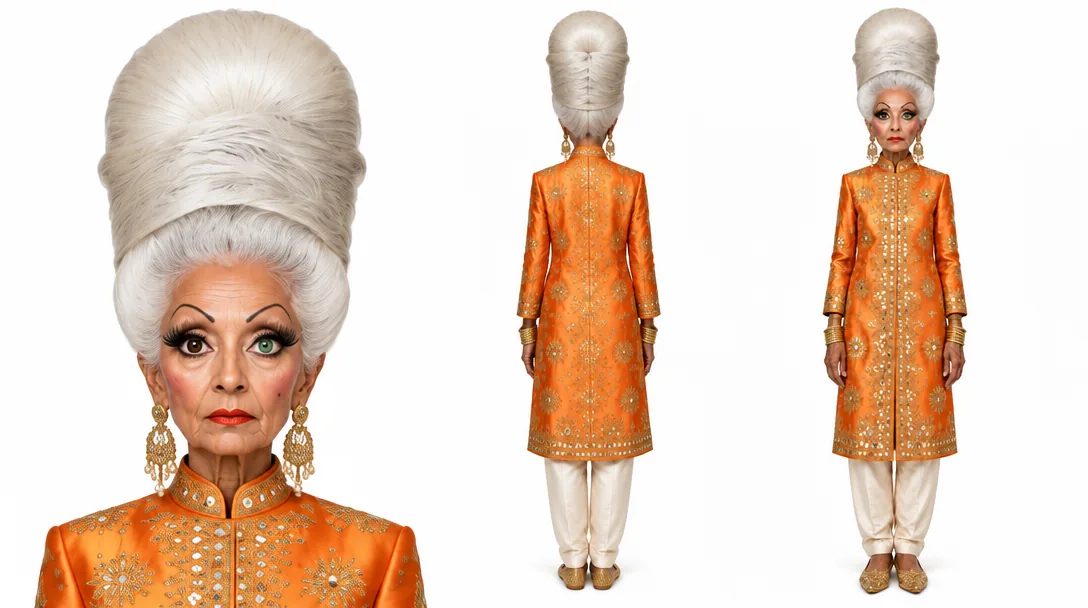
The rear view matters more than it looks. It's the record of how the outfit and hair fall at the back, so when the model turns on the next shot, nothing has to be invented. The front view holds build, proportions and wardrobe from head to shoes, and the portrait holds the face.
The sheet is saved under the model's @handle. Mention that handle in any image or video prompt and the sheet goes along as the identity reference. That's the whole idea behind a consistent character: the image model is shown who the person is instead of reading a description.
Already have photos of a model who has agreed to it, or a character in illustrations or 3D? The AI character sheet generator takes up to eight images of one character, or a written description, and returns the same three-view layout. Save it as an influencer and it gets an @handle too.
Step 3: Shoot the Looks
Open the model's page and choose Photoshoot. Pick a setting or write your own. There are twelve presets across Lifestyle, Fashion, Travel, Fitness, Glam and Work, and the Fashion group is built for clothing:
- Streetwear: a concrete wall, hard midday shadow, lookbook framing.
- Designer glam: an elegant evening look in a marble hotel lobby, under soft glam lighting.
The rest are Golden hour, Café morning, Beach day, City nights, Gym session, Morning run, Old town, Clean studio, Creator desk and Night out. Clean studio, a light grey seamless backdrop with a soft key light, is the closest to a catalogue shot.
Shoot one, two or four frames at 4:5, 1:1, 9:16 or 16:9. The face comes from the sheet and the prompt sets everything else, so write the outfit in specific words: fabric, cut, colour and fit.
Two more formats sit next to Photoshoot:
- Carousel renders four slides of the same scene, each in a different framing, for a swipeable post of one look.
- Headshots come square, in Corporate, Creative, Outdoor or Low-key.
Recreate a photo is the shortcut for a look you already have. Attach a reference photo and the model takes its pose, outfit, setting and light while the face stays theirs. Use images you have the right to use.
Step 4: Put Your Garment on the Model in Motion
Feeds run on short video, and Genjudo, Genfire's video-to-video studio, has two presets built for clothing. Both run on Seedance 2.5.
Garment on model takes three inputs: a reference clip for the movement, an image of your model and an image of your garment. It renders your model wearing the garment while performing the clip's moves, keeping the model's identity and the garment's cut, colour and fabric, and matching the clip's timing and camera move. A walk toward camera or a slow turn makes a strong product clip.
Swap the outfit works on a take you already have. The outfit changes to your garment, the folds follow the existing body motion, and the face, hair, performance, light, framing and timing stay as filmed.
A few things make both work better:
- Pick a readable clip. One clear subject, the whole body in frame and a reasonably steady camera.
- Use a clean model image. Images that show the full figure on a plain background work best, and the studio's sheets are already on white.
- Run more than one take. Clips run 4 to 30 seconds, and each run can produce up to four takes. You can also paste an Instagram reel link as the source clip, as long as it's footage you have the rights to.
From the model's own page, Cinematic scene also accepts up to six extra reference images of products or outfits. Add one without citing it in your prompt and the prompt is extended so your character wears or holds what it shows. Video from the model's page defaults to vertical 9:16, with 16:9 and 1:1 available.
Running an AI Model for a Clothing Brand
Once the model exists, the work looks like a content calendar rather than a shoot schedule.
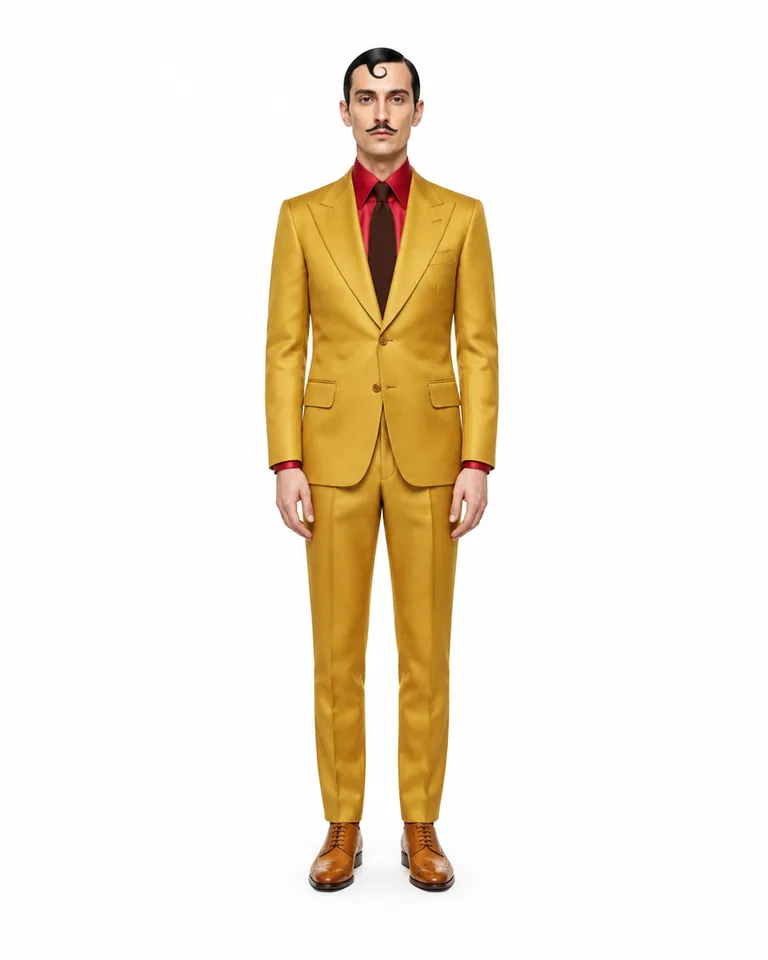
- One face per drop. A recurring model fronts every release, so the brand keeps one recognisable face.
- Lookbooks. The same model across a season's looks, shot in matching settings.
- Carousels of one look. Four framings of the same outfit for a product post.
- A cast. Each model is saved under its own @handle with its own sheet, so you can cast several and mention whichever one a post needs.
Keep expectations honest. The sheet makes the same face the default, but busy scenes, extreme angles and big changes to the look can still drift. Keep the model clearly in frame, change one thing at a time, and generate more than one take when a shot matters. Label AI-generated content the way each platform asks, especially in sponsored posts.
To see the casting options, photoshoot settings and Genjudo presets side by side, open the AI fashion model generator.
What It Costs
Each shoot is paid in Genfire credits, and the exact price shows in the Generate button before it runs; it scales with the number of shots. Credit packs start at $19 with no subscription, credits stay valid for 12 months, and every pack includes a commercial-use licence. The same balance covers 80+ image, video and audio models.
FAQ
Can I create an AI model for my clothing brand?
Yes. Cast a model in the AI Influencer Studio to match your customer, by age, build, height, hair and skin tone, and lock them on a character sheet. From then on the same model fronts your photoshoots, carousels and videos, so your posts keep one recognisable face.
How do I put my garment on an AI model in a video?
Use Genjudo's Garment on model preset. Give it a reference clip, an image of your model and an image of your garment, and it renders your model wearing the garment while performing the clip's moves. To change the outfit in a video you already have, use Swap the outfit.
What does an AI model photoshoot include?
A setting, either one of twelve presets such as Streetwear, Designer glam or Clean studio, or one you write yourself, then one, two or four shots at 4:5, 1:1, 9:16 or 16:9. A carousel renders four slides of one scene, and headshots come in Corporate, Creative, Outdoor and Low-key.
Will the virtual model look the same in every photo?
The character sheet travels with the model's @handle as the identity reference, which makes the same face the default in every shot. Keep the model clearly in frame and change one thing per prompt for the most consistent results.
Do I need a real model or a photo of one?
No. Most models are built from traits and a description alone, so the person is original. If you do start from a photo of a real person, it must be someone who has agreed to it.