Genjudo AI motion transfer, character swap & video edit
Film it once. Change anything. Drop any clip and Genjudo reads it shot by shot, then rebuilds it with your cast, your product or your change — the performance, timing and camera carry straight through.
Billed per second from one credit balance · the exact cost shows before you run · credit packs from $19
- OriginalMotion transfer
Two dancers re-cast as two original characters, beat for beat
- OriginalSwap
A new bartender in the same take — every pour still on the beat
- OriginalMotion transfer
The same routine, a different duo
- OriginalMotion transfer
Same hands, same camera — a new character counting the stack
- OriginalSwap
A new lead, with the performance kept as filmed
- OriginalMotion transfer
A living-room dance moved to a high-rise with a new dancer
- OriginalMotion transfer
A hallway strut, re-cast and set in a new corridor
What it does
One clip. Five ways to change it.
Every mode starts from footage you already have. These are the directions Genjudo actually sends — your clip is @Video1, your images are @Image1 and @Image2.
Any clip’s moves, timing and camera, performed by your own cast in a new shot. The clip’s sound can stay.
Transfer the dance in @Video1 onto @Image1 beat for beat: the same footwork, arm timing and weight shifts, with the camera framing held. Keep the identity, clothing and proportions of @Image1 unchanged.
- 01
Motion transfer
Any clip’s moves, timing and camera, performed by your own cast in a new shot.
Give Genjudo a clip and one or two images. It keeps the choreography, the blocking and the camera move, and rebuilds everything else around your characters — a dance beat for beat, a product demo with your product in hand, a walk-and-talk set somewhere new.
Exact transfer · Dance, beat for beat · Product in hand · Two characters · Garment on model · Motion in a new place
- 02
Swap
Change who is in it, what they hold or where they are. The rest stays as filmed.
Swap keeps the take you already have — the performance, the hands, the light, the framing — and replaces one thing in it: your character in the lead role, your product in the shot, your garment on the body, or a new location behind the subject.
Swap the product · Swap the outfit · Swap the location
- 03
Video edit
Relight, reframe, clean up or regrade a take you already have.
Fix the shot instead of reshooting it. Turn flat daylight into golden hour, cut a vertical 9:16 that follows the subject, clear the people walking through the background, or regrade the whole take — the motion and the timing stay exactly as filmed.
Light & weather: Golden hour · Dusk / blue hour · Overcast to sunny · Neon night · Candlelit · Fog & rain
Reframe: Punch in · Widen the shot · Go vertical · Change the lens
Clean up: Remove background people · Remove logos & text · Remove an object · Steady & de-clutter
Colour & grade: Recolour the hero · Change the season · 1970s film stock · Black-and-white noir
- 04
Extend
Carry a clip on past its last frame — same cast, same light, same camera.
When a take ends too soon, Extend continues it from the final frame, so the shot runs as long as the edit needs without a visible join.
- 05
Motion Control
A second engine for motion: Kling 3.0 Motion Control.
Animate one character image with a reference clip’s movement on Kling 3.0 Motion Control — trimmed in the browser, run from the same studio and the same credit balance.
Real runs
The clip, then what Genjudo made of it.
No stand-ins — every pair is a real run. Pick one to see the original beside what Genjudo made.
How it works
From a clip to your shot in four steps.
This is the run in the slider above — its clip, its two characters, the direction Genjudo wrote for it, and the result.
- 01@Video1
Drop a clip
Upload a short video — a dance, a walk-and-talk, a product demo — or paste an Instagram reel link and use the reel directly.
- 02
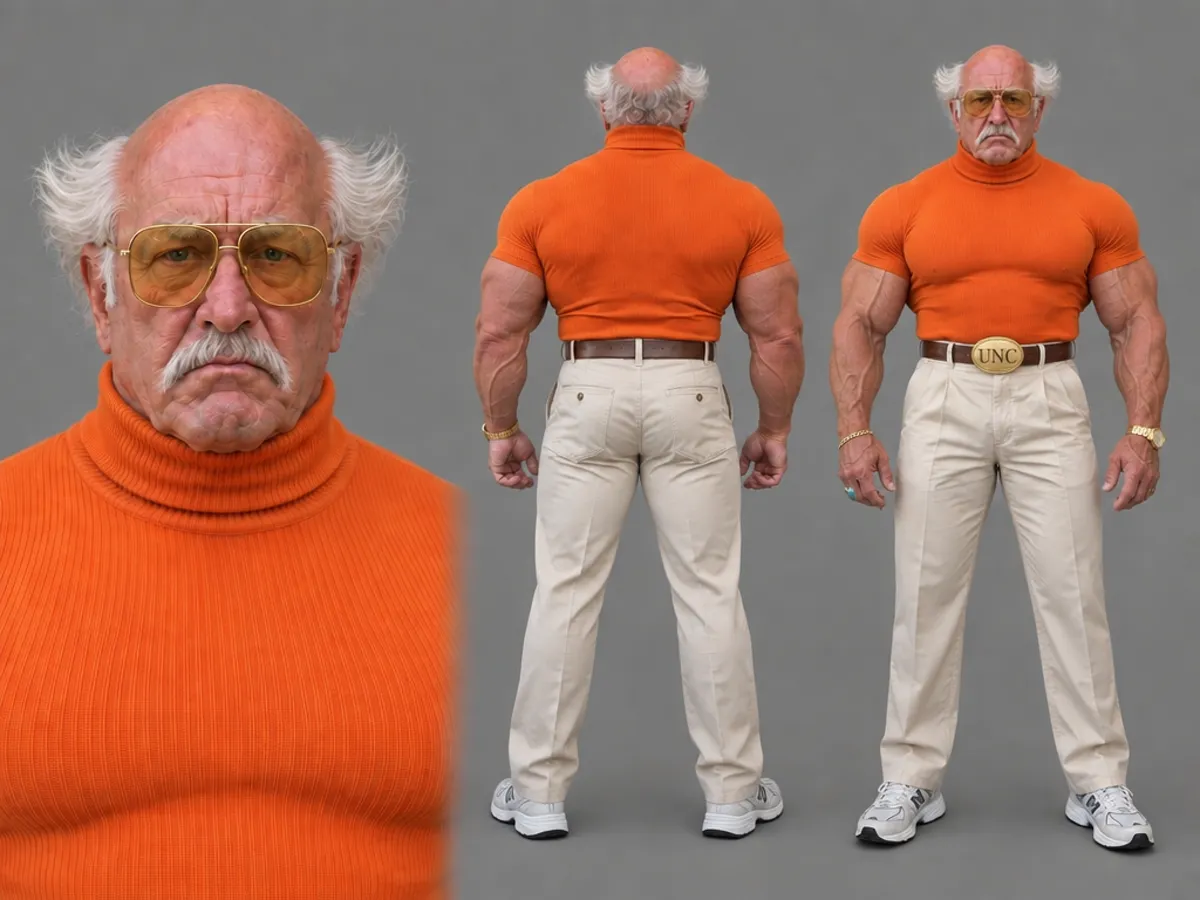 @Image1
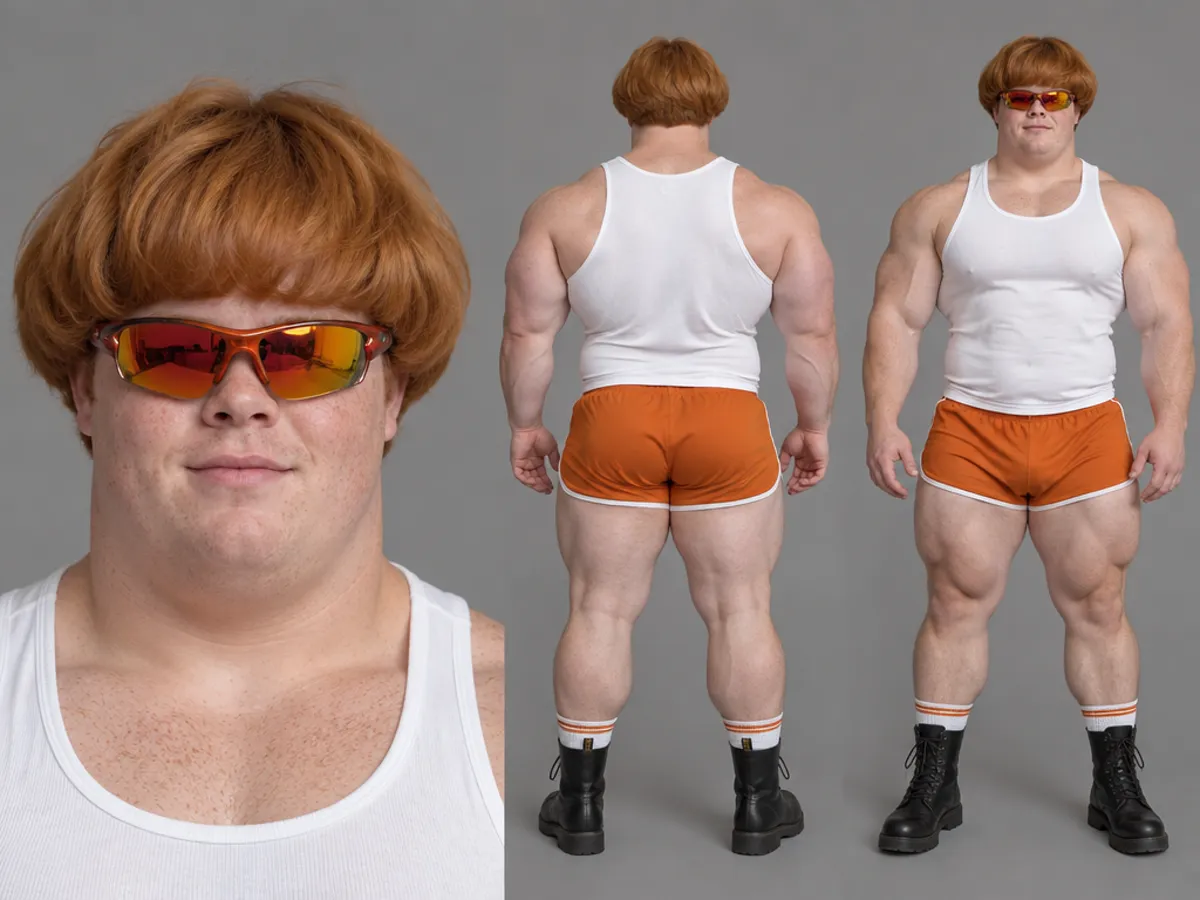 @Image2
Add who goes in
One or two character images, a product, an outfit or a place — whatever the clip should be rebuilt around.
- 03Direction
Create a new video in which the muscular elderly man from @Image1 and the muscular young man from @Image2 perform the exact dance motion, timing, and choreography of @Video1. @Image1 replaces the dancer in the foreground left, and @Image2 replaces the dancer in the background right, keeping the low-angle framing and night setting under the lit pavilion.
Let it write the direction
Genjudo watches the clip shot by shot and writes a direction that maps each image to its role. Keep it, edit it, or write your own.
- 04Genjudo
Run up to four takes
Pick the length and the sound, see the exact credit cost, and run. Keep the best take, extend it, or run it again.
The details
Built for the take you keep.
- 01
It reads the clip before you type
A director model watches your clip and writes a shot-by-shot direction, citing the clip as @Video1 and each image as @Image1, @Image2 — the same text the model receives.
- 02
Four takes per run
Generate one to four takes of the same direction and keep the one that lands.
- 03
Keep the clip’s sound
Lay the original audio back under the result, generate new sound, or go silent. Length follows your clip so the music never runs out early.
- 04
Paste a reel, skip the download
An Instagram reel link becomes the source clip; a photo post becomes your cast.
- 05
4 to 30 seconds
Outputs run from four to thirty seconds and match the length of the clip you trim to.
- 06
Seedance 2.5 underneath
Genjudo runs on ByteDance Seedance 2.5 reference-to-video, with Kling 3.0 Motion Control and other edit models a click away.
What people use it for
Six jobs it does better than a reshoot.
Dance trends, your character
Take the dance everyone is doing and have your own character perform it beat for beat, with the original song kept underneath.
AI dance video generator →Put your character in any clip
Re-cast a filmed performance with an original character — same moves, same camera, same timing.
AI character swap →Copy a move, not a look
Lift the motion out of one clip and stage it somewhere new, with a new cast, in the light you want.
AI motion transfer →Make your AI influencer move
Cast an influencer in the AI Influencer Studio, then give them any clip to perform.
AI Influencer Studio →Re-cast product demos and ads
Keep a UGC ad’s performance and put your product in hand, or your garment on the model.
AI ad generator →Fix a take without reshooting
Relight, reframe to vertical, or clear the background of a shot you already have.
AI video editor →
Pricing
Pay for the seconds you make.
Genjudo bills per second of output from your Genfire credit balance — the same balance that covers 80+ image, video and audio models. The studio shows the exact cost before every run, and a failed run is refunded automatically.
FAQ
Questions about Genjudo
What is Genjudo?
Genjudo is Genfire’s video-to-video studio. You give it a clip and it rebuilds that clip with your change: your own characters performing the clip’s moves (motion transfer), a different character, product, outfit or location in the same take (swap), or new light, framing or grade on the shot you already have (video edit). It runs on ByteDance Seedance 2.5.
How does AI motion transfer work in Genjudo?
Upload a reference clip and one or two images of who should perform it. Genjudo reads the clip shot by shot, writes a direction that maps each image to its role, and generates a new video in which your characters perform the same moves with the same timing and camera move. You can edit the direction before you run it.
Can I swap the person in a video for my own character?
Yes. Swap keeps the original performance, light and framing and replaces who is in the shot with your character — or, if you prefer, only the product they hold, the outfit they wear, or the location behind them.
How long can a Genjudo video be?
Each run produces four to thirty seconds, and the length follows the clip you trim to. To go longer, Extend continues a finished take from its last frame.
Can I keep the original audio?
Yes. Choose “Clip’s sound” and Genjudo lays the source clip’s audio back under the result, timed to the trimmed window. You can also generate new sound or export silent.
Which AI model does Genjudo use?
Motion transfer, swap and video edit run on ByteDance Seedance 2.5 reference-to-video. The Motion Control tab runs Kling 3.0 Motion Control, and video edits can switch to other edit models from the same screen.
How much does Genjudo cost?
Genjudo is billed per second of output from your Genfire credit balance — the same balance that covers every other model on Genfire — and the studio shows the exact cost before you run. Credit packs start at $19.
Can I use an Instagram reel as the source clip?
Yes. Paste a public Instagram reel link and Genjudo uses the reel as the source clip; a photo post becomes your cast images instead.
What kind of clip works best?
One clear subject, the whole body in frame for dance and full-body moves, a reasonably steady camera and decent light. Character images work best when they show the full figure on a plain background, framed roughly like the person in the clip.
Is Genjudo an alternative to Higgsfield Genjutsu?
Yes. Genjudo is Genfire’s own video-to-video studio — a separate product from a different company — and it covers the same jobs: motion transfer onto your own characters, swapping who or what is in a shot, and editing a take you already have. It runs on ByteDance Seedance 2.5, writes the direction for you, runs up to four takes, can keep the clip’s original sound, and bills from one credit balance shared with 80+ other models.
Can I use other people’s videos or faces?
Use clips you have the rights to, and only put real people in a video if they have agreed to it. Original characters — for example ones you cast in Genfire’s AI Influencer Studio — are the safest choice for anything you publish.
Film it once. Change anything.
Bring a clip. Genjudo keeps the performance and changes the rest.