What you can create
One tool, many formats — these are the things creators actually ship with the ai 3d model generator.
Game props and characters
Turn concept art or a character sheet into a rigged, textured asset with a polycount your engine can afford.
Product models for AR
Photograph a product from a few angles and ship a USDZ that opens in iOS AR Quick Look or a GLB for the web.
Blender scene assets
Download the BLEND file and drop the object into a set — or generate it at the 3D cursor from the Blender plugin.
3D-print-ready meshes
Export STL from a photo of a figurine, part, or prototype and send it straight to the slicer.
Web and e-commerce viewers
GLB loads natively in three.js and model-viewer, so a product photo becomes a spinnable model on your site.
Batch asset libraries
Queue models through the API, CLI, or MCP server and build a library of props from a folder of reference images.
Why Genfire
One image or four angles
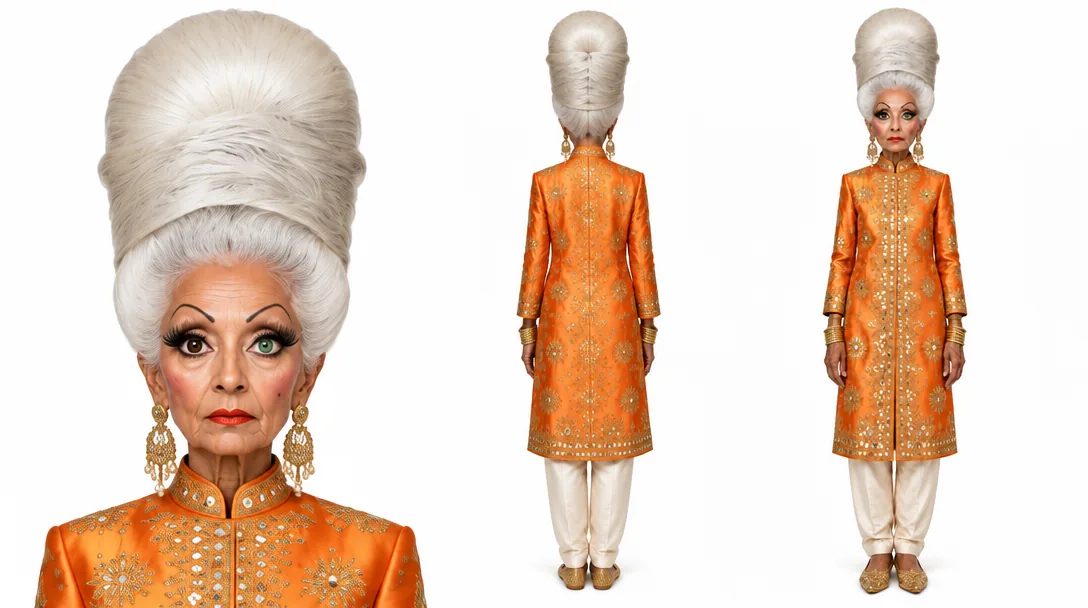
A single photo is enough for image-to-3D. Add front, side, and back views of the same object and Genfire switches to multi-image-to-3D for more accurate geometry where a single view has to guess.
Every format you actually use
Each model exports as GLB, FBX, OBJ, USDZ, BLEND, and STL. GLB loads natively in three.js and model-viewer, USDZ drops into iOS AR, BLEND opens straight in Blender, and STL goes to the printer.
Textures, PBR, rigging, and animation
Turn base-color textures on or off, steer them with a texture prompt, add metallic, roughness, and normal maps for real game-engine materials, then auto-rig humanoid characters and apply an animation preset.
Geometry you control
Set a target polycount from 100 to 300,000, choose quad or triangle topology, force an A-pose or T-pose for rigging, pick low-poly mode for games, or switch on Ultra for finer surface detail from a single image.
Source image ideas
Steal these to get started — every one is a single click from a result.
How it works
- 1
Upload your source images
Drop one clean photo of a single object, or add up to four angles of the same object. Pick Meshy v7 (default) or v6 to reproduce an earlier result.
- 2
Set the model options
Toggle textures, PBR, auto-rig, and animation. Open Advanced to set polycount, topology, pose, and an optional texture-style prompt.
- 3
Generate and download
Processing takes about 5–10 minutes and finishes server-side, so you can leave the tab. Inspect the result in the built-in viewer and download any format.
From a flat image to a mesh you can actually use
Image-to-3D has crossed the line from novelty to production tool, and the difference is in the outputs. Meshy v7 on Genfire does not stop at a preview mesh: it returns GLB, FBX, OBJ, USDZ, BLEND, and STL files, optional PBR maps (metallic, roughness, and normal), a thumbnail, and — for humanoid characters — a rig with basic walk and run animations and a catalog of animation presets. The GLB loads natively in three.js and model-viewer, which is how the studio itself shows you the result: a spinnable, lit model right on the page, minutes after you uploaded a photo.
Input quality still decides output quality, and the studio is built around that. A single image works, but a single view forces the model to guess what the back of the object looks like. Add two to four angles of the same object — front, side, back — and Genfire routes the job to multi-image-to-3D, which resolves the hidden surfaces from real evidence instead of inference. Ultra mode, available for single-image runs on v7, pushes surface detail further for objects with fine geometry. Meshy v6 stays selectable so an asset you generated last month can be reproduced with the same engine.
The geometry controls are what make the models usable downstream rather than just viewable. A target polycount from 100 to 300,000 lets you fit an engine budget; quad topology gives smooth surfaces for subdivision and sculpting while triangle topology keeps detailed geometry intact; low-poly mode hands you clean game-optimized polys; and A-pose or T-pose enforcement sets characters up for rigging. Because Genfire is image-to-3D, text-to-3D is a two-run flow — generate the object with the image generator, then convert it — and the Blender plugin and game builder chain those two runs behind a single prompt. The same generator is available as POST /v1 3D generations, the genfire_generate_3d_model MCP tool, and the CLI.
Frequently asked questions
How does the AI 3D model generator work?
You upload one image of an object — or one to four images of the same object from different angles — and Genfire runs Meshy v7 to reconstruct a textured 3D mesh. The finished model is delivered as GLB, FBX, OBJ, USDZ, BLEND, and STL files, with optional PBR maps, auto-rigging, and animation, and appears in a 3D viewer on the page when it is ready.
Can I generate a 3D model from text?
Meshy on Genfire is image-to-3D, so text-to-3D is a two-step flow: generate a reference image of the object with the AI image generator, then convert that image into a 3D model. The Blender plugin and the game builder run those two steps for you from a single prompt.
Which file formats can I download?
Every model exports as GLB, FBX, OBJ, USDZ, BLEND, and STL. GLB is the web and game-engine default and loads directly in three.js and model-viewer, USDZ is for iOS AR Quick Look, BLEND opens natively in Blender, and STL is for 3D printing.
Are the generated 3D models game-ready?
Yes. You can set a target polycount between 100 and 300,000, choose quad or triangle topology, pick a low-poly mode optimized for games, add PBR maps for physically based materials, and auto-rig humanoid characters with basic walk and run animations.
How long does 3D generation take?
Most models finish in about 5–10 minutes. Generation completes on the server, so you can close the tab and the finished model will be waiting in your recent 3D models when you come back.
What kind of source image works best for image-to-3D?
A single object on a clean, uncluttered background with even lighting gives the best mesh. Avoid heavy shadows, cropped edges, and multiple objects in one frame, and add up to four angles of the same object when you need accurate geometry on the sides and back.
Can I use the 3D model generator from Blender or from code?
Yes. The Genfire Blender extension generates models from a prompt or a reference image and places them at the 3D cursor, and the same generator is exposed on the REST API, the @genfire/cli 3d command, and the genfire_generate_3d_model tool on the MCP server.
What is the difference between Meshy v7 and Meshy v6 on Genfire?
Both take the same inputs and return the same formats. Meshy v7 is the default and adds Ultra mode for higher-fidelity geometry with finer surface detail on single-image runs; Meshy v6 is kept so you can pin the previous generation and reproduce earlier results.
From the blog
All posts →
Explore Genfire
AI Tools
AI Models
Start creating with AI 3D Model Generator
65+ AI models, a visual workflow editor, persistent influencers, and an API — all in one app. Free plan included, no credit card required.
Get Started Free